Input Devices
Alphanumeric Keyboards
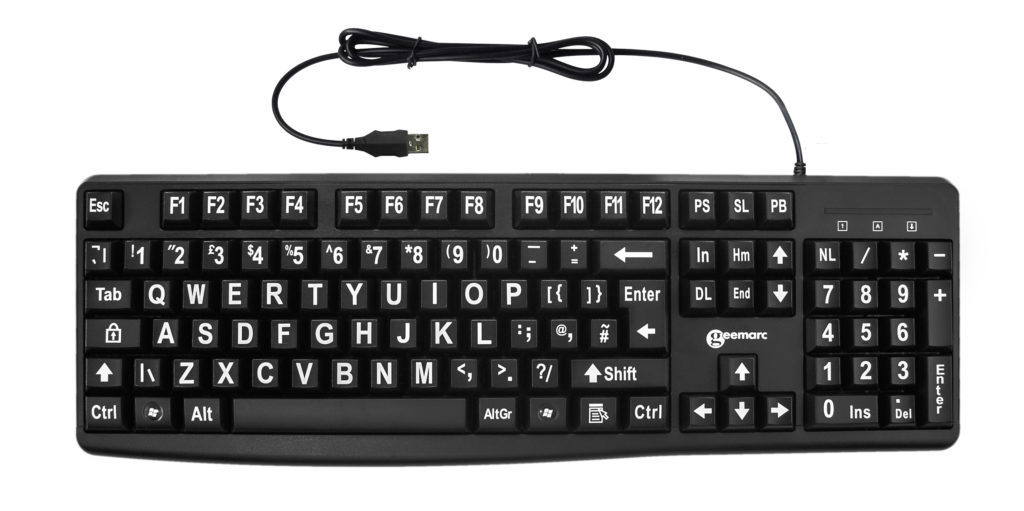
The most common input device is the keyboard. There are two types of keyboards : the alphanumeric keyboard and special-function keyboard. When a key on a keyboard is pressed it sends a digital code to the computer. The top row of letters on most keyboards begin with the letters QWERTY and for this reason they are called QWERTY keyboards. Keyboards allow users to type letters, digits and special characters such as ( ! @ # $ % ) etc.
 |
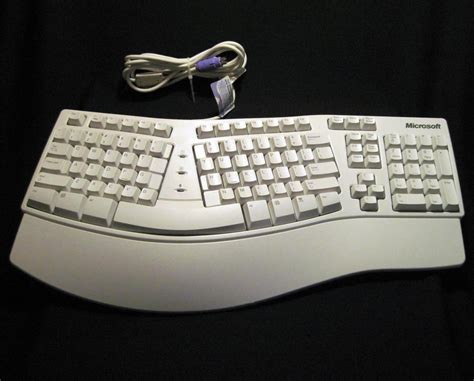 |
Standard QWERTY keyboard | Ergonomic keyboard |
Standard keyboards
Standard keyboards may have their keys arranged in different ways. The QWERTY layout is most common.
Function keys
On some keyboards you will see keys marked from Fn1 to Fn12. The Fn is short for function key. These keys may be used for different special functions determined by the application proram in use. Many applications use the Fn1 key to display HELP.
Learn More about the three main types of keyboard layout
Ergonomic keyboards
These keyboards are designed in such a manner that a user can work very long hours at them while experiencing little discomfort. Data enty operators are well advised to use egonomically designed keyboards to reduce the chances of developing repetitive strain injuries (RSI).
Special Function Keyboards
Besides the standard keyboards there are also special-function keyboards that are invented each for a particular purpose :
- Braille keyboard - for visually impared persons
- Left-handed keyboard - for left handed people
- Virtual keyboard - The picture of a keyboard is projected unto a surface
- Concept keyboard - Whole words or pictures are printed on a key with a flexible membrane
- Windows onscreen keyboard - If you are working with a Windows 10 or 11 computer and you encounter keys that are difficult to work with you can press key combination Ctrl + Windows + O to access the windows onscreen keyboard.
4 Tips to fix keyboard problems
Here are four simple tips you can try if your keyboard is not working properly :
- Check the cable of the keyboard and make sure it is well connected
- Clean the keyboard.
- Restart your computer and check if the keyboard can work
- Perform a Windows Update. Click Start -> Settings -> Windows Update -> Check for updates
The mouse
A mouse is also called a pointing device. Used extensively by graphical user interface operating systems like the Windows OS and Mac OS to move and click on icons on the screen. There are wired and wireless mice.
Ergonomic mouse
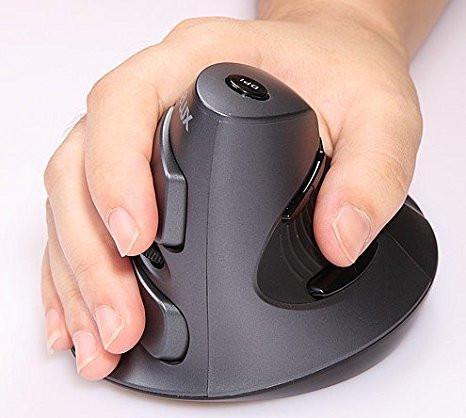 Like ergonomic keyboards there are ergonomically designed mouse that are designed to eleminate strain if your job requires that you use a mouse reqularly and for long periods of time.
Optical mouse
An optical mouse has no moving parts and is easy to use. They emit a small beam of red light that bounces off the surface into a sensor. The advantage to using an optical mouse is that dirt does not cause the mouse to malfunction.
Trackball mouse
These have a large ball that can be rolled with the palm of your hand or your fingures.
Touch sensitive pads
These are pressure sensitive pads about 5cm X 5cm that are usually found on laptop computers. They allow you to manipulate a mouse pointer on screen and make selections from menus.
Joystick and Gaming pads
These input devices are used by gamers. A joystick is also a pointing device that enables the user to control the movement of objects on a screen. Gaming pads operate like a joystick in that the user presses buttons or move levers but it is held in both hands while the joystick is usually held in one hand.
Scanners
Scanners were originally designed to be used like photocopying machines where we place an image unto the device and it takes a picture of it. Now they are used to scan text into wordprocessing applications and desktop publishing applications also. Two of the main types of scanners are flat-bed scanners and hand-held scanners.
Document scanners
Modern scanners available today and their many features (10 mins)